Content Blocks Guide
Embedding Videos (YouTube, Vimeo)
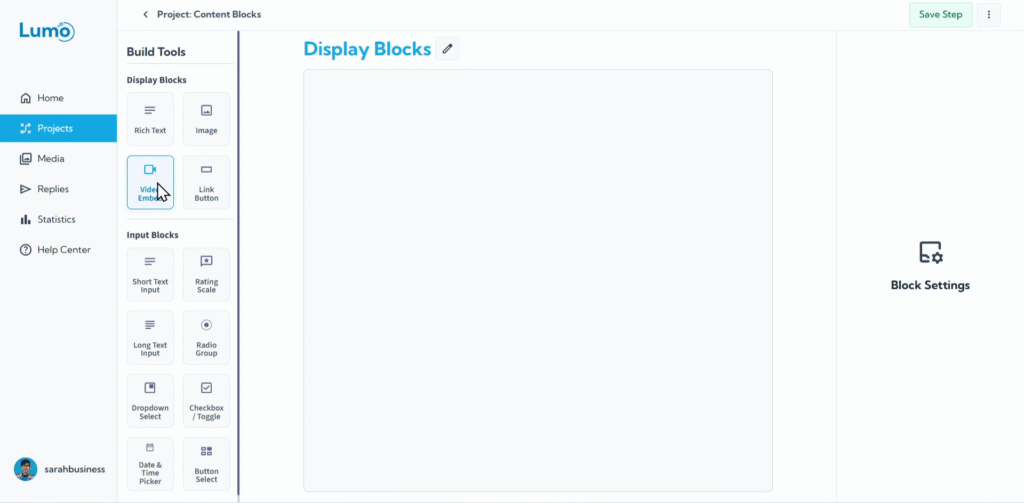
Adding videos to your Lumo can make it dynamic, engaging, and highly informative. Whether you want to share an introductory video, a product demonstration, a tutorial, or a testimonial, the Video block in LumoPages makes it incredibly easy to embed content directly from popular video platforms like YouTube and Vimeo.
This guide will walk you through the simple process of embedding videos into your Lumo stages.
What is a Video Block?
A Video block is a Content Block that allows you to display videos hosted on external platforms directly within your Lumo. Instead of uploading large video files, you simply paste the video's shareable link, and LumoPages handles the embedding for you.
Step-by-Step: Adding a Video Block
- Enter the Stage Editor: Navigate to the specific stage where you want to add a video.
- Add "Video" block: Drag the "Video" block from the panel that appears, select the "Video" block type under "Content Blocks."
Get the Video Share Link: This is the most crucial step. You need the direct shareable link from YouTube or Vimeo.
For YouTube:
- Go to the YouTube video you want to embed.
- Click the "Share" button located beneath the video.
- Copy the URL provided (it often looks like
https://youtu.be/...orhttps://www.youtube.com/watch?v=...).
For Vimeo:
- Go to the Vimeo video you want to embed.
- Click the "Share" icon (often a paper airplane or an arrow) on the video player.
- Copy the "Link" URL provided.
Paste the Video Link into the Block: Once the Video block appears on your Lumo stage, you'll see an input field labeled "Video URL" or similar.
- Paste the copied YouTube or Vimeo share link into this field.
- LumoPages will then automatically detect the video and embed it.
Configuring Your Video Block
After embedding your video, you can add descriptive text using the block's settings:
Video Description (Caption): You can add text that appears directly beneath your embedded video. This is useful for providing context, a brief summary, or a call to action related to the video.
- Locate the "Video Description" or "Caption" field in the block's settings.
Saving Your Changes
Remember to manually save your changes after adding or modifying video blocks. Locate the "Save" button in your editor and click it to ensure your videos are secured and applied to your Lumo.
If you try to navigate away from the editor after making changes without saving, LumoPages will remind you to save your work. This is critical for protecting your design, especially if your Lumo is currently live for users.
Embedding videos can significantly enrich your Lumo, providing a more immersive and informative experience for your users. Use them to tell your story, showcase your offerings, or deliver key messages in a dynamic way. Next, we'll explore how to add interactive buttons to your Lumos.