Account, Billing and Plans
Managing Your Media Library and Storage
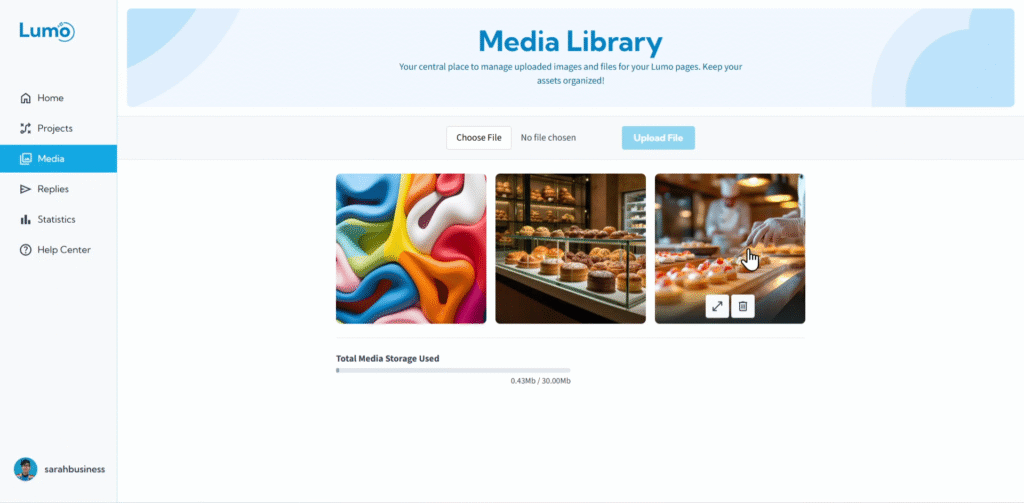
Images, videos, and soon, user-uploaded files, all contribute to your Lumo's richness. LumoPages provides a dedicated Media Library where you can manage all the visual assets you've uploaded and monitor your account's storage usage. Efficient media management ensures your Lumos load quickly and that you stay within your plan's storage limits.
This guide will walk you through how to manage your media files and keep an eye on your storage consumption.
What is the Media Library?
The Media Library is a centralized repository within your LumoPages account for all the images and other media files you upload. Whenever you add an image to an Image block, or embed a video, the system manages these assets through this library.
Step-by-Step: Accessing and Managing Your Media Library
Overview of Your Media Library. Once in the Media Library, you'll see a gallery or list of all the media files you've uploaded to your account.
- Each entry will typically show a thumbnail of the image/file.
Uploading New Media. To add new images or files to your library (for use in future or existing Lumos):
- Look for an "Upload New" button or a drag-and-drop area.
- Click "Upload New" and browse your device to select the file(s).
Deleting Media. If you have old, unused, or duplicate media files, you can delete them to free up storage space.
- Select the file(s) you wish to delete (often by clicking on them or hovering and selecting a checkbox).
- Look for a "Delete" button or trash can icon.
- Confirm the deletion when prompted.
Deleting media files from your Media Library is generally permanent. Ensure the file is not currently used in any of your active Lumos, or that you have a backup, before deleting. If a file is in use, it might stop displaying correctly in your Lumo.
Monitoring Your Storage Usage
An essential part of media management is keeping track of your overall storage consumption. LumoPages clearly displays how much storage you've used relative to your plan's limit.
Locate Storage Usage Indicator. Within the Media Library interface, you'll typically find a clear indicator showing:
- Total Storage Used: The amount of space your uploaded files currently occupy (e.g., "55 MB used").
- Total Storage Available: Your plan's total storage limit (e.g., "of 200 MB available" on Plus, "of 1 GB available" on Pro).
- Percentage Used: A visual bar or percentage indicating your current usage.
When to Consider Upgrading Storage
- If you consistently find yourself near or exceeding your plan's storage limit.
- If you plan to use a large number of high-resolution images or videos.
- Especially when the File Upload block (upcoming) becomes available, as user-uploaded files will consume your storage.
Managing your Media Library and monitoring your storage ensures your Lumos always perform optimally and that you have the space needed for all your creative assets and collected files.