Data Collection and Management
Exporting Response Data (CSV)
LumoPages' privacy policy covers data on our platform. When you export data, its protection and compliance become your responsibility. Always ensure your practices meet legal and ethical standards. Read more about Data Privacy and Export Compliance.
While viewing responses directly in your LumoPages Inbox is excellent for quick checks, you'll often need to analyze your collected data more deeply using external tools like spreadsheet software (e.g., Microsoft Excel, Google Sheets, LibreOffice Calc). This is where the Export to CSV (Comma Separated Values) feature becomes invaluable. CSV is a universal format that allows you to download all your form submissions in a structured, tabular format.
This guide will walk you through the simple process of exporting your Lumo response data to a CSV file.
What is CSV Export?
CSV (Comma Separated Values) is a plain text file format that stores tabular data (numbers and text) in a simple, standardized way. Each line in the file represents a data record, and each field in the record is separated by a comma (or sometimes another delimiter).
When you export your Lumo responses to CSV:
- Each row in the CSV file will typically represent a single form submission.
- Each column will represent a specific field from your Lumo (e.g., "First Name," "Rating of Visit," "Date of Visit").
- This format is easily imported into virtually any spreadsheet program or database for further analysis.
Step-by-Step: Exporting Your Responses to CSV
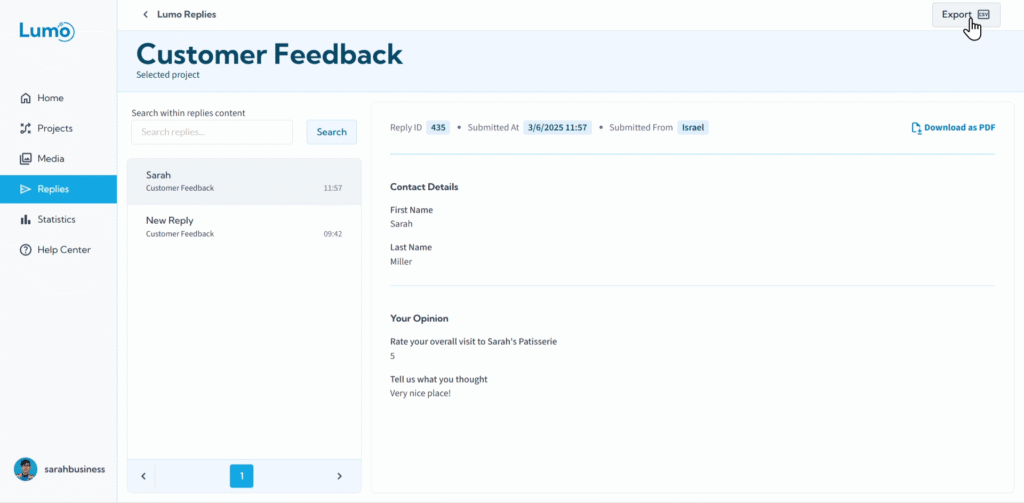
Click to Export and Download. Click the "Export" button.
- LumoPages will then generate the CSV file.
- Your browser will typically prompt you to save the file to your computer. Choose a location and click "Save."
What to Do with Your CSV File
Once downloaded, you can open the CSV file with any spreadsheet program. You'll then be able to:
- Sort Data: Organize responses by date, rating, or any other field.
- Filter Data: Apply more complex filters than available in the LumoPages Inbox.
- Analyze Trends: Calculate averages (e.g., average rating), count specific responses, or identify common themes.
- Create Charts and Graphs: Visualize your data to easily understand insights.
- Share Data: Share the raw data with colleagues or other departments who need to process it.
- Integrate with Other Tools: Import into business intelligence tools, CRM systems (if not using webhooks), or other platforms for advanced processing.
When opening a CSV file in spreadsheet software, sometimes you might need to specify that the data is "delimited" by commas (or semicolons, depending on your region) to ensure it's parsed into columns correctly.
Exporting your response data to CSV provides you with the flexibility and power to perform in-depth analysis beyond the LumoPages interface. It's a fundamental step for leveraging your collected data effectively.