Designing Your Lumo
Setting Content Alignment (RTL/LTR)
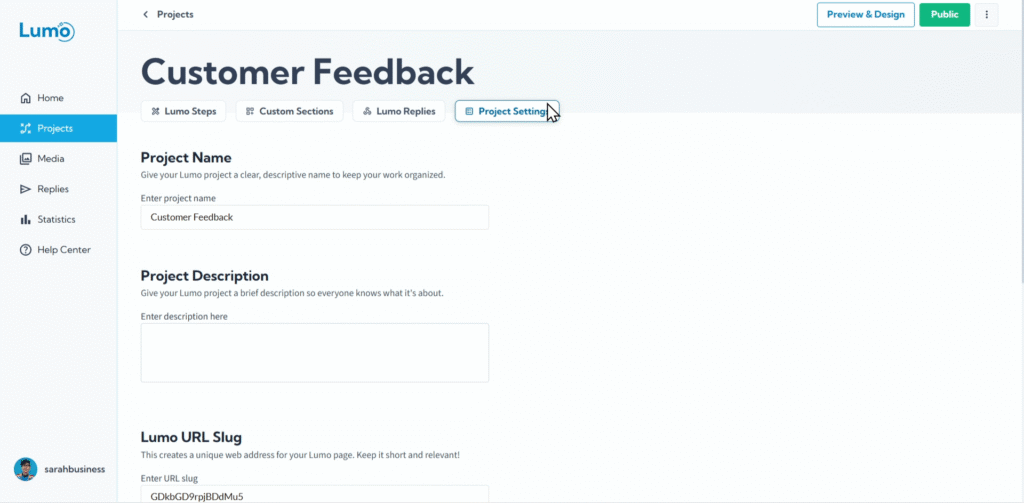
In a global and diverse world, ensuring your digital forms are accessible and comfortable for all users is paramount. LumoPages understands this need and provides a crucial setting for Content Alignment: Right-to-Left (RTL) or Left-to-Right (LTR). This allows you to tailor the text direction of your Lumo to match the writing system of your audience, ensuring a natural and intuitive reading experience.
This guide will show you how to set the content alignment for your Lumo.
What is Content Alignment (RTL/LTR)?
Content Alignment (RTL/LTR) refers to the direction in which text and typically the overall layout of elements are displayed on a page.
- Left-to-Right (LTR): This is the standard direction for languages like English, Spanish, French, etc. Text flows from left to right, and elements are typically aligned from left to right.
- Right-to-Left (RTL): This is the standard direction for languages like Hebrew, Arabic, Persian, and Urdu. Text flows from right to left, and the layout of elements often mirrors this direction.
Choosing the correct alignment is vital for readability and user comfort, especially when your Lumo's content is in an RTL language.
Step-by-Step: Setting Your Lumo's Content Alignment
Select Your Desired Alignment. You will typically find options to choose between "Left-to-Right (LTR)" and "Right-to-Left (RTL)."
- Click on the radio button or select the option corresponding to the primary direction of your Lumo's content.
Important Considerations After Setting Alignment
- Content Consistency: While the alignment setting changes the overall direction, ensure that your actual text content (typed in Rich Text blocks, field labels, etc.) is indeed in the language corresponding to your chosen alignment.
- Visual Impact: The system will attempt to adjust the layout of blocks and elements according to the chosen direction. Always Preview Your Lumo immediately after changing this setting to ensure everything appears as expected.
- User Experience: Correct content alignment makes your Lumo much more professional and user-friendly for audiences who read RTL languages, demonstrating attention to detail and cultural awareness.
Saving Your Changes
After setting your Lumo's content alignment, it is crucial to manually save your changes to your project. Look for the prominent "Save" button in your editor and click it.
If you try to navigate away from the editor after making design changes without saving, LumoPages will remind you to save your work. This is vital to ensure your Lumo's appearance is updated, especially if it's currently published and accessible to users.
By correctly setting the content alignment, you ensure that your Lumo provides an optimal and natural reading and interaction experience for all your users, regardless of their native language's writing direction.