Publishing and Sharing
Understanding Publish Status and Project Visibility
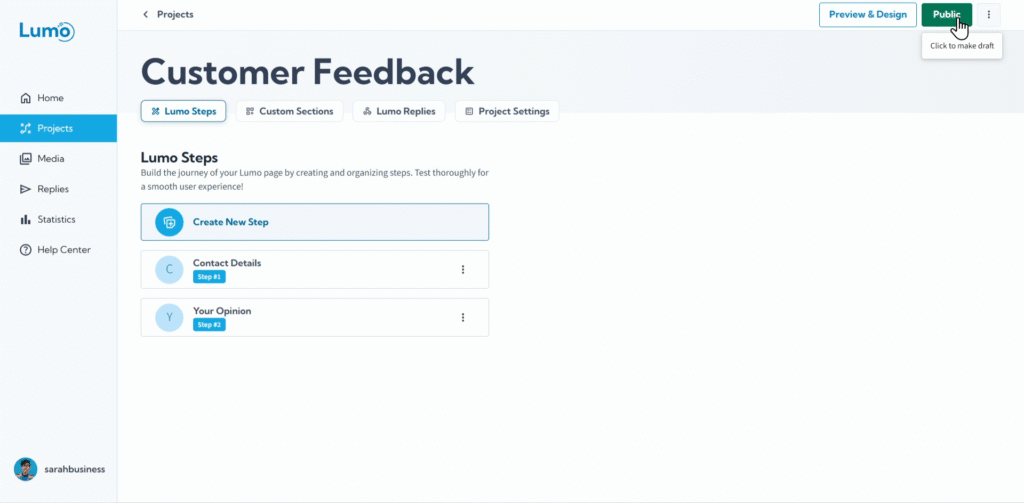
Creating a beautiful and functional Lumo is a great achievement, but its true purpose is realized when it's accessible to your audience. The Publish Status and Project Visibility settings in LumoPages control whether your digital form is live and available for users to view and submit. Understanding these settings is crucial for managing your Lumo's lifecycle.
This guide will explain the different publish statuses and the conditions for making your project visible to the public.
What is Publish Status?
Publish Status defines the current state of your Lumo project, determining whether it's an active, live form or still a work in progress.
1. Draft Status (Hidden)
- Default State: When you first create a new project, it is automatically set to "Draft" status.
- Visibility: In Draft status, your Lumo is not visible to the public. Only you, the creator, can access it within your LumoPages account.
- Purpose: This is your private workspace. You can build, edit, and refine your Lumo (including all its stages and blocks) without affecting any live version. It's perfect for development and testing.
2. Public Status (Live / Available for Viewing)
- Active State: When your Lumo is set to "Public" status, it becomes live and accessible via its unique URL.
- Visibility: Anyone with the Lumo's link can view and submit it.
- Purpose: This is the state where your form is actively collecting responses from your audience.
Conditions for Making a Project Public
LumoPages has a crucial condition to ensure that only functional forms are published publicly:
Requirement for Public Status: For a project to be published and remain "Public," it must contain at least one visible stage that includes at least one field block (like a Text field, Rating, Dropdown, etc.) that users can fill out.
- This prevents publishing empty forms or forms that are purely static content but intended to collect data.
If your project is currently "Public" and you later edit it such that there are no longer any field blocks in any of its visible stages (e.g., you delete all input fields, or hide all stages that contain fields), the project will immediately revert to "Draft" status and become unavailable to the public. You will need to add a field block to a visible stage and save it to make it public again.
Step-by-Step: Managing Publish Status and Project Visibility
Option 1
Locate Project Publish Status: You can see on the right top corner your current project status.
- To change the status first click on it.
- Then confirm the publish/hide prompt.
Option 2
Select Publish Status Change from Menu: Click on the right top menu of the project you wish to change its status.
- Public projects will have an option to unpublish.
- Draft projects will have an option to publish.
Option 3
- Enter Your Project Editor: Navigate to the Lumo project you want to manage.
- Access "Project Settings": In the project editor, click on the "Project Settings" tab or section in your navigation. This is where global settings for your Lumo are managed.
- Locate "Publish Status": Within the "Project Settings," you'll find an option labeled "Publish Status" or "Visibility." This is typically a toggle switch or a dropdown.
Option 4
- Enter Your Project Editor: Navigate to the Lumo project you want to manage.
- Access "Preview & Design": In the project editor, click on the "Preview & Design" on the top bar.
- Locate "Publish Project": Within the "Project Preview & Design", you'll find on the top bar option labeled "Publish Project", Click on it to make your project public.
Understanding and managing your Lumo's publish status and visibility is key to controlling when and how your digital forms are presented to your audience. This ensures you maintain control over your data collection efforts.