Field Blocks Guide
Long Text Fields
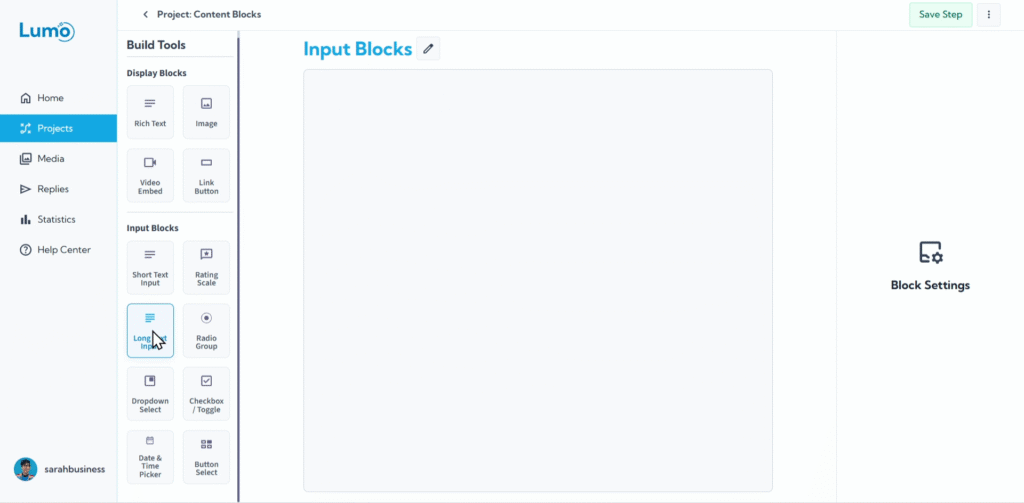
When you need to gather more extensive input from your users, such as detailed feedback, comments, or descriptions, the Long Text field in LumoPages is your ideal solution. This block provides ample space for multi-line text, encouraging users to provide comprehensive responses.
This guide will explain how to set up and configure long text fields.
What is a Long Text Field?
A Long Text field (or "Long Text" block) is a multi-line text area designed for extended user input. Unlike short text fields, it's optimized for paragraphs and longer messages, providing a scrollable area that expands as the user types.
Step-by-Step: Adding a Long Text Field
Configure Your Long Text Field: After adding the field, you'll set its properties:
Placeholder Text: This optional text is displayed inside the text area before the user starts typing, offering a hint or an example of the expected input.
Saving Your Changes
After adding or modifying any long text fields, remember to manually save your changes. Look for the "Save" button in the editor and click it.
If you try to navigate away from the editor without saving, LumoPages will remind you to save your work. Always pay attention to these prompts to avoid losing your progress, especially if your Lumo is live!
Long text fields are invaluable for gathering rich, detailed qualitative data. By providing enough space and clear instructions, you encourage users to share comprehensive insights, leading to more valuable feedback.