Field Blocks Guide
Short Text Fields
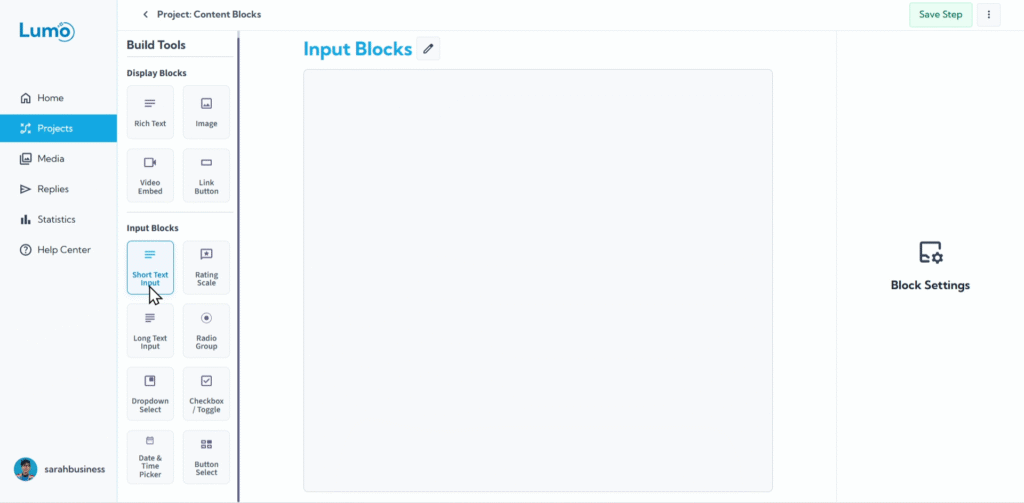
Short text fields are fundamental to almost any digital form, allowing you to quickly gather concise pieces of information from your users. In LumoPages, the Text block is your go-to for capturing single-line inputs like names, email addresses, phone numbers, or brief answers.
This guide will explain how to set up and configure short text fields effectively.
What is a Short Text Field?
A Short Text field (or simply "Text" block) is designed for brief, single-line text input. It's ideal when you need a specific piece of concise information from the user.
Step-by-Step: Adding a Short Text Field
Configure Your Short Text Field: After adding the field, you'll set its properties:
Input Type: This setting is crucial for basic validation and helps mobile devices display the appropriate keyboard. Options typically include:
- Text: For general alphanumeric input (e.g., names, addresses).
- Email: Optimized for email addresses (often includes basic
@and.checks). - Number: Restricts input to numerical characters (e.g., phone numbers, quantities).
Saving Your Changes
After adding or modifying any short text fields, remember to manually save your changes. Look for the "Save" button in the editor and click it.
If you try to navigate away from the editor without saving, LumoPages will remind you to save your work. Always pay attention to these prompts to avoid losing your progress, especially if your Lumo is live!
Short text fields are fundamental for precise data collection. By clearly labeling and configuring them, you ensure your forms are intuitive and capture the exact information you need.