Field Blocks Guide
Radio Group Fields
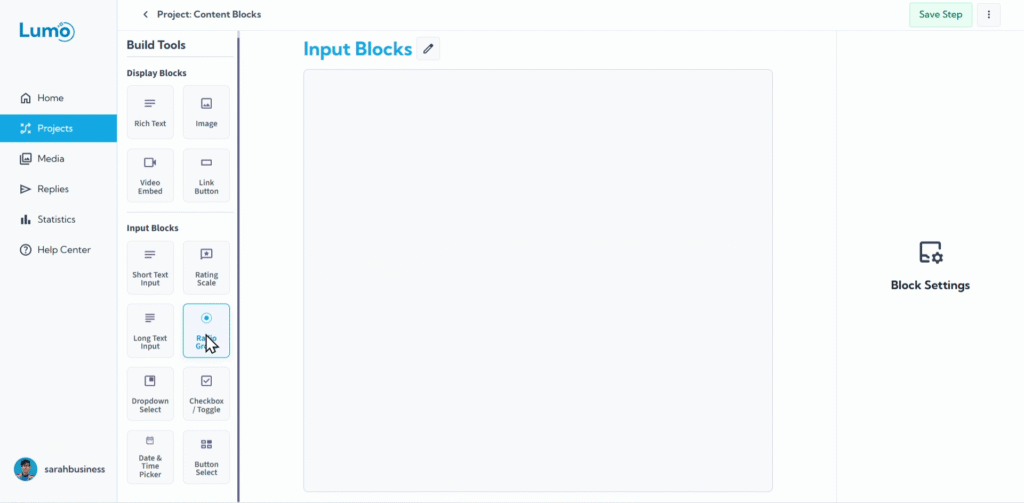
When you need users to select precisely one option from a small, mutually exclusive list, the Radio Group field is the perfect Field Block. Radio buttons are designed so that selecting one option automatically deselects any other option within the same group, ensuring a single choice.
This guide will explain how to set up Radio Group fields in your Lumo.
What is a Radio Group Field?
A Radio Group field displays a set of circular "radio buttons," each representing a single option. Users can click only one button within that specific group. Once an option is selected, it cannot be deselected without selecting another option in the same group.
Step-by-Step: Adding a Radio Group Field
Configure the Radio Group: After adding the block, you'll set its properties:
Field Label: This is the question or instruction for the group of options.
Edit Content of Each Option: This is where you define the individual choices that will appear as radio buttons within the group.
- Click "Add Option" to create a new radio button choice.
- Enter the text for each option.
- You can add as many options as you need for a single choice.
Saving Your Changes
Always remember to manually save your changes after configuring Radio Group fields by clicking the "Save" button in the editor.
If you try to exit the editor without saving, LumoPages will remind you to save your work. This ensures your form design and settings are preserved.
Radio Groups are ideal for mutually exclusive choices where users can only pick one answer. They provide clear, visual options that are easy to understand and interact with, contributing to a smooth user experience.