Field Blocks Guide
Number Counter Field
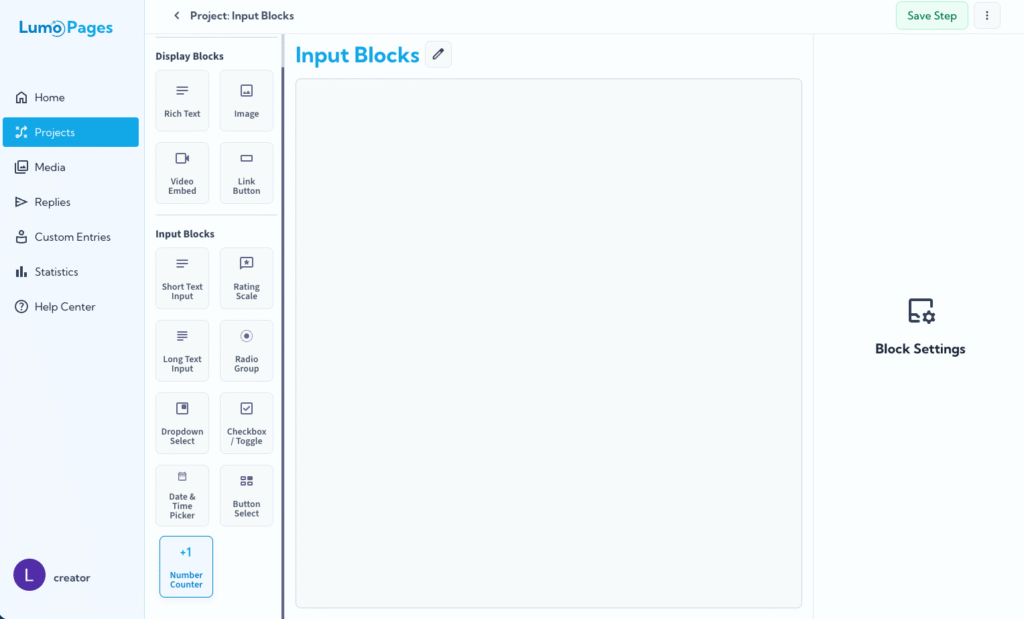
Collecting numerical data from your users is a common requirement for many digital forms. The Number Counter block in LumoPages offers an intuitive and user-friendly way for respondents to input numerical values, simplifying the process and helping ensure data accuracy.
This guide will explain how to set up and configure the Number Counter field effectively.
Understanding the Number Counter Block
A Counter block is designed for numerical input, allowing users to adjust a value using dedicated plus (+) and minus (-) buttons instead of typing numbers manually. This makes it an excellent choice for fields where you need to collect quantities, ages, scores, or any other numerical data within a specified range.
Step-by-Step: Adding a Number Counter Field
Add the "Counter" Block:
- In the left tools panel, locate the "Input Blocks" section.
- Drag the "Counter" block from this section and drop it onto your step canvas.
Configure Your Counter Field: Once the Counter block is added, its configuration settings will become available. Here, you can define its properties:
- Field Label: This is the visible text displayed above the field. It acts as an instruction, clearly telling the user what type of numerical input is expected (e.g., "Quantity," "Number of Participants," "Your Rating").
- Description (Optional): This text appears under the label field. It can offer a hint, an example, or simply guide the user.
- Initial Value: Set the number that the counter will display by default when the form is loaded. This is the starting point for the user.
- Minimum Value: Define the lowest number a user can select. The counter will not go below this value.
- Maximum Value: Set the highest number a user can select. The counter will not go above this value.
- Step Value: Determine the amount by which the number increases or decreases with each click of the plus (+) or minus (-) buttons. For instance, a step value of '1' means the number changes by one unit at a time, while '10' means it changes by ten units.
- Required: Check this box if filling out this field is mandatory for the user to submit the form. A visual indicator (often an asterisk) will appear next to required fields, and users will be prompted if they try to submit without completing it.
Saving Your Changes
After adding or modifying any counter fields, remember to manually save your changes. Look for the "Save" button in the editor and click it.
If you try to navigate away from the editor without saving, LumoPages will remind you to save your work. Always pay attention to these prompts to avoid losing your progress, especially if your Lumo is live!
The Counter block is a practical addition to your Lumo forms, making numerical input both efficient and user-friendly.