Getting Started
Logging In to Your Account
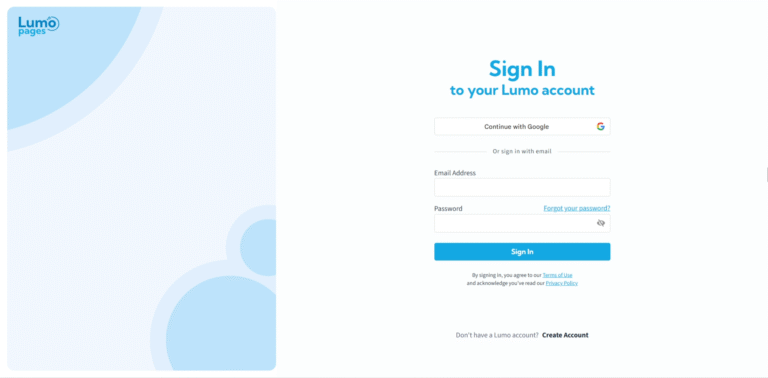
Now that you've successfully created your LumoPages account, the next step is to log in and start exploring! Whether you're returning after a break or just signed up, accessing your account is quick and straightforward.
Let's guide you through the process of logging into your LumoPages account.
Step-by-Step Login Guide
- Go to the LumoPages Login Page: Open your web browser and go to the LumoPages website. Look for a "Login" or "Sign In" button, usually located in the top right corner of the homepage. Click on it to navigate to the login screen.
Choose Your Login Method: LumoPages provides two convenient options for logging in, mirroring the registration process:
- Login with Email and Password: If you registered using your email address, you'll use these credentials to sign in.
- Login with Google: If you registered or linked your account with Google, you can use this option for a faster login.
Enter Your Credentials (Email & Password Example): If you choose the email and password method:
- Email: Enter the email address you used to register.
- Password: Enter the password you created during the registration process.
For quicker access on your personal device, you can often use your browser's "Remember Me" or password autofill feature. However, avoid doing this on public or shared computers for security reasons.
Login with Google (Alternative Method): If you previously registered or linked your LumoPages account with your Google account:
- Simply click the "Login with Google" button.
- You might be prompted to select your Google account if you have multiple, or to enter your Google password if you're not already signed in to Google.
- LumoPages will automatically log you in.
If you have an existing LumoPages account registered with the same email address as your Google account, choosing "Login with Google" will automatically link these accounts and log you in.
What if You Forgot Your Password?
It happens to the best of us! If you've forgotten your password, don't worry.
- On the login page, click the "Forgot Password?" link.
- You'll be prompted to enter your registered email address.
- A password reset link or verification code will be sent to your email. Follow the instructions in the email to set a new password.
Always ensure you are on the official LumoPages website before entering your login credentials. Be wary of suspicious emails asking for your password or directing you to unfamiliar login pages.
Once successfully logged in, you'll be greeted by your LumoPages dashboard, your central hub for managing all your projects, media, and submitted forms. Let's head there next!