Getting Started
Signing Up for a New Account
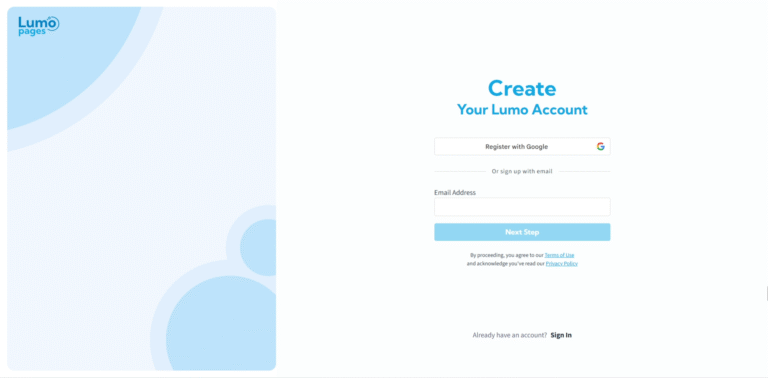
Ready to dive in and create your first Lumo? The first step is to sign up for your new account! We've made the registration process simple and quick, so you can get started building your digital forms in no time.
Let's walk through the steps to get your LumoPages account set up.
Step-by-Step Registration Guide
Choose Your Registration Method: LumoPages offers two convenient ways to sign up:
- Register with Email: This is the standard method where you'll provide your email address and create a password.
- Register with Google: If you prefer, you can use your existing Google account for a super-fast sign-up process. If you already have a LumoPages account associated with that Google email, it will automatically link.
Enter Your Details (Email Registration Example): If you choose to register with your email, you'll be prompted to fill in a few details.
- First Name: Enter your first name.
- Last Name: Enter your last name.
- Email: Provide your email address. This will be your primary contact email for the platform.
- Username: Choose a unique username. This will often be used as part of your public Lumo URLs.
- Password: Create a strong password. Make sure it's something you'll remember but isn't easy for others to guess.
Choose a strong, unique password that combines uppercase and lowercase letters, numbers, and symbols. This helps keep your account secure!
Email Verification (for Email Registrations): If you registered with your email address, you'll receive a verification email from LumoPages.
- Open the email: Check your inbox (and sometimes your spam/junk folder) for an email from LumoPages.
- Click the verification link: This link confirms your email address and activates your account. You won't be able to fully use your account until your email is verified.
If you don't verify your email, you won't be able to access all the features of LumoPages, including creating and publishing Lumos. Always check your spam folder if you don't see the verification email within a few minutes.
Select Your Initial Plan: After successful registration and email verification (if applicable), you'll be directed to choose your initial service plan.
- You can start with the Basic (Free) plan, which allows you to create unlimited Lumos with certain response and storage limits. This is a great way to explore the platform without any upfront cost. You can also choose to upgrade to a Plus or Pro plan immediately if you know you'll need more features or higher limits.
Congratulations! Your LumoPages account is now successfully created. You're ready to move on to the next step: logging in and exploring your new dashboard.