Getting Started
Managing Your User Profile
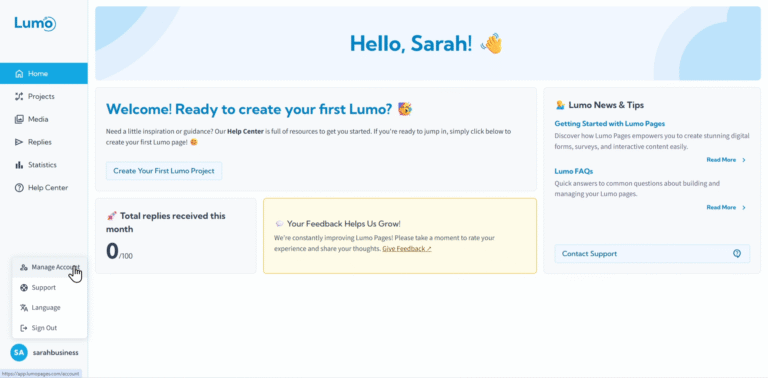
Your LumoPages account is where all your digital forms and collected data reside, so it's important to keep your profile information accurate and up-to-date. The "Account Management" section is your personal hub for customizing your details, managing your avatar, and ensuring your contact information is correct.
Let's explore how to manage your user profile.
Accessing Your Profile Settings
- Navigate to Account Management: From your LumoPages dashboard, locate the "Account Management" option in the main navigation menu (usually on the left sidebar). Click on it.
- Access Profile Details: Once in Account Management, you'll see various tabs or sections. Look for a "Profile" or "Personal Details" section. This is where you can view and edit your basic information.
Updating Your Personal Information
Here, you can edit various fields to ensure your account reflects your current details.
- First Name: Your given name.
- Last Name: Your family name.
- Company: The name of your business or organization.
- Phone (WhatsApp): Your mobile number for WhatsApp notifications. You must verify it with a one-time code before it is saved and used. See Verifying Your Phone Number with WhatsApp for the full steps.
- Address: Your physical address.
Keeping your company and contact information updated helps LumoPages provide you with relevant support and ensures your billing details (if applicable) are accurate.
Important Note on Unchangeable Details:
Please note that your Username and Email Address are set during the account creation process and cannot be directly updated from this profile management section. These are unique identifiers for your account within the system.
Managing Your User Avatar
Your avatar is a small image that represents you within the LumoPages interface. It adds a personal touch to your account.
Changing Your Avatar:
- Click on the "Change Avatar" or "Upload New" button.
- You'll typically be prompted to upload an image file from your device.
- Follow any on-screen instructions for cropping or resizing the image if necessary.
Deleting Your Avatar:
- If you wish to remove your current avatar and revert to the default (often a generic icon or initial), click the "Delete Avatar" or "Remove" button. Confirm your choice if prompted.
By taking a few moments to manage your user profile, you ensure your LumoPages account is personalized and your essential information is always accurate. This makes your experience smoother and helps us provide you with the best service possible.
Next, we'll cover another important aspect of account security: Changing Your Password.