Getting Started
Setting Your Language Preferences
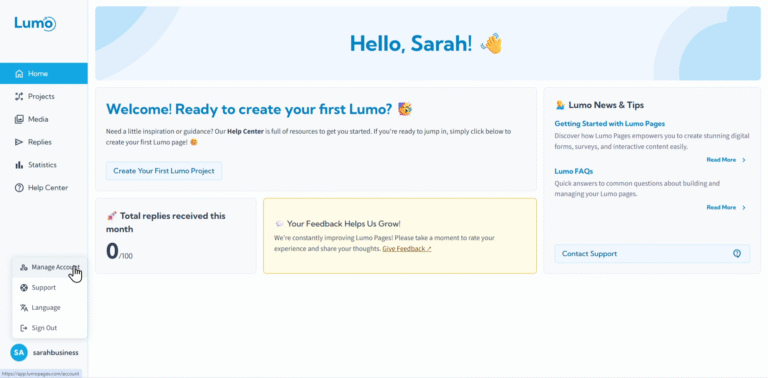
LumoPages is designed to be user-friendly for a global audience, which means you can choose the language you prefer for the platform interface as well as the language for your individual Lumos. This flexibility ensures a seamless experience for both you and your audience.
In this guide, we'll show you how to set your language preferences.
1. Setting Your LumoPages System Language
This setting controls the language of the LumoPages interface itself: the menus, buttons, and text you see when you're building and managing your forms.
- Navigate to Account Management: From your LumoPages dashboard, click on "Account Management" in the main navigation menu.
- Access Language Settings: Within the Account Management section, look for a tab or section related to "Settings" or specifically "Language." Click on it.
Choose Your Preferred System Language: You'll typically see a dropdown menu or a list of available languages.
- Select your desired language from the options (e.g., English, Hebrew).
- Save Changes: Click the "Save" or "Update" button to apply your new system language settings. The interface should refresh to display in the chosen language.
2. Setting the Interface Language for Each Lumo (Form)
Beyond the system language, LumoPages allows you to set the specific interface language for each individual Lumo (your digital form). This means that elements like "Next Step," "Submit," or error messages displayed to your form's users will appear in the language you select for that particular Lumo.
Setting the Lumo's language correctly is crucial for providing a localized and professional experience to your customers. If your customers primarily speak a language different from your system language, this feature is essential.
Open Your Project's Settings:
- Go to your "Projects" page from the main navigation menu.
- Click on the specific Lumo you want to edit.
- Once in the project editor, navigate to the "Project Settings" section.
- Locate Lumo Language Option: Within the Project Settings, look for an option related to "Lumo Language" or "Form Language."
Select the Desired Lumo Language:
- Use the dropdown menu to select the language for that specific form's interface (e.g., English, Hebrew, Spanish, etc. if available).
- Save Project Settings: Ensure you save the project settings to apply the new Lumo language.
By leveraging both the system language and individual Lumo language settings, you can tailor your LumoPages experience to your preferences while also delivering perfectly localized digital forms to your audience. This attention to detail can significantly enhance user experience and engagement.